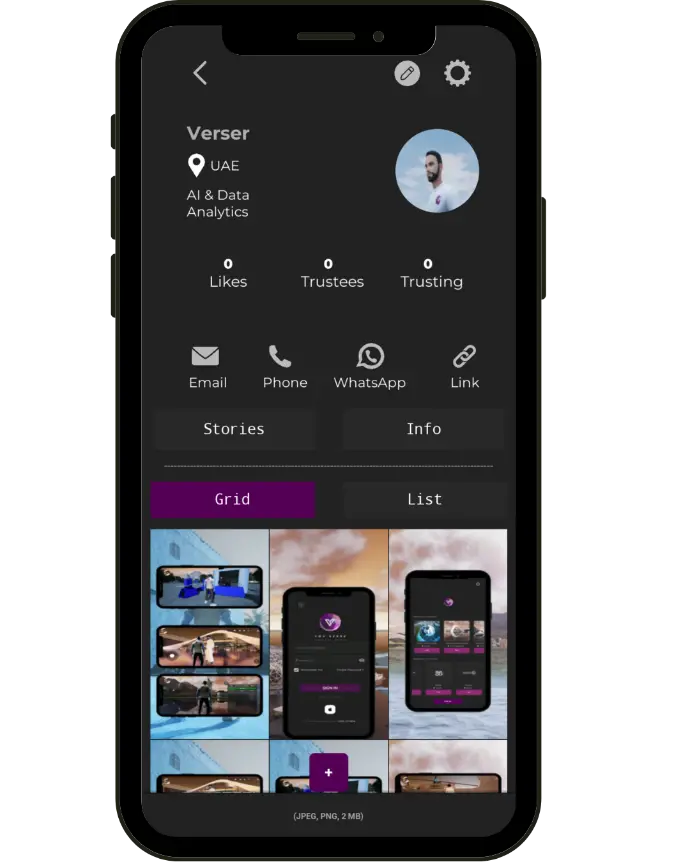
Step1
Download YouVerse from the App Store or Google Play and open the app
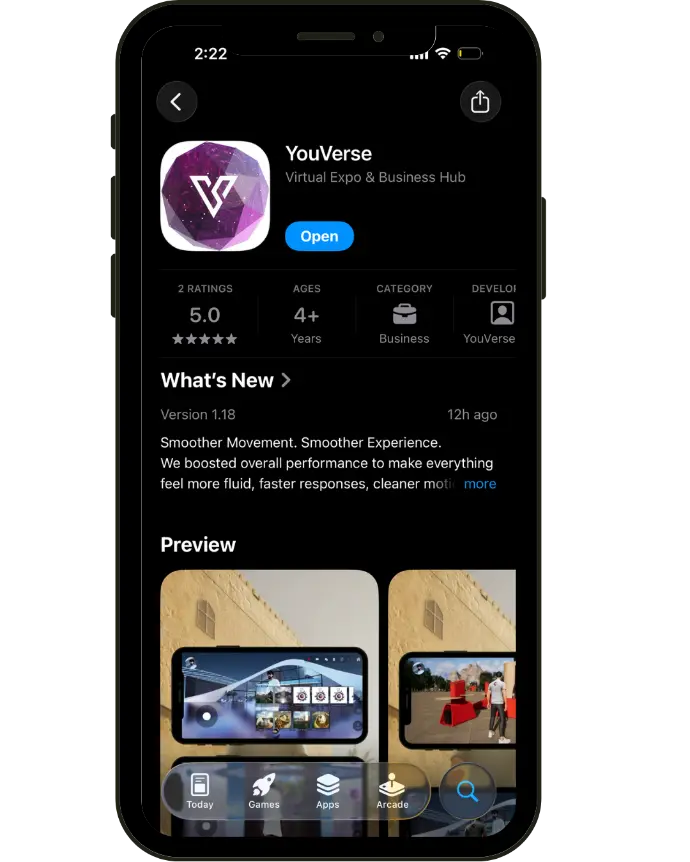
Step2
Sign up for a new account or sign in if you already have one
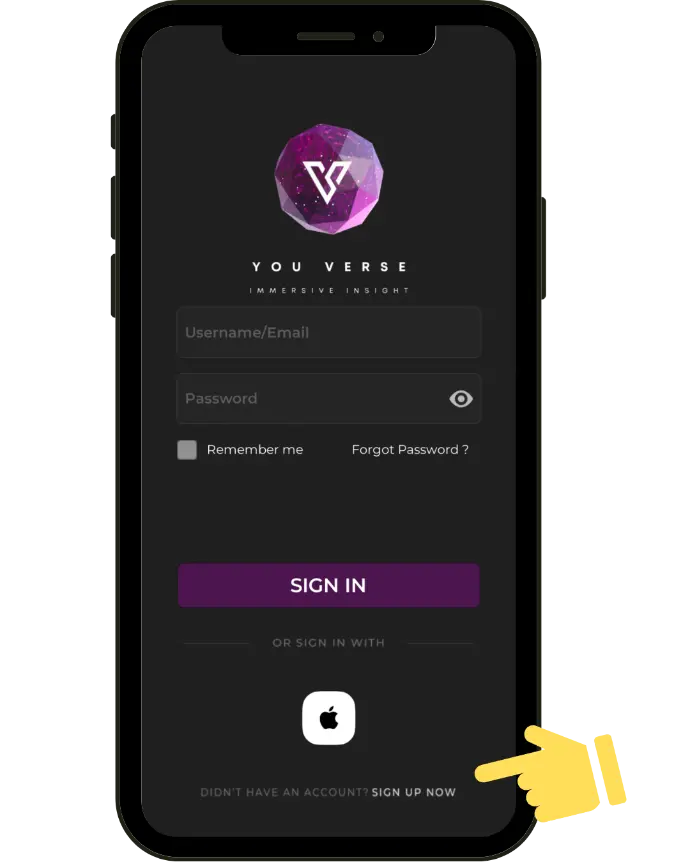
Step 3
Read the Terms and Conditions and tap
“I Agree” to continue.
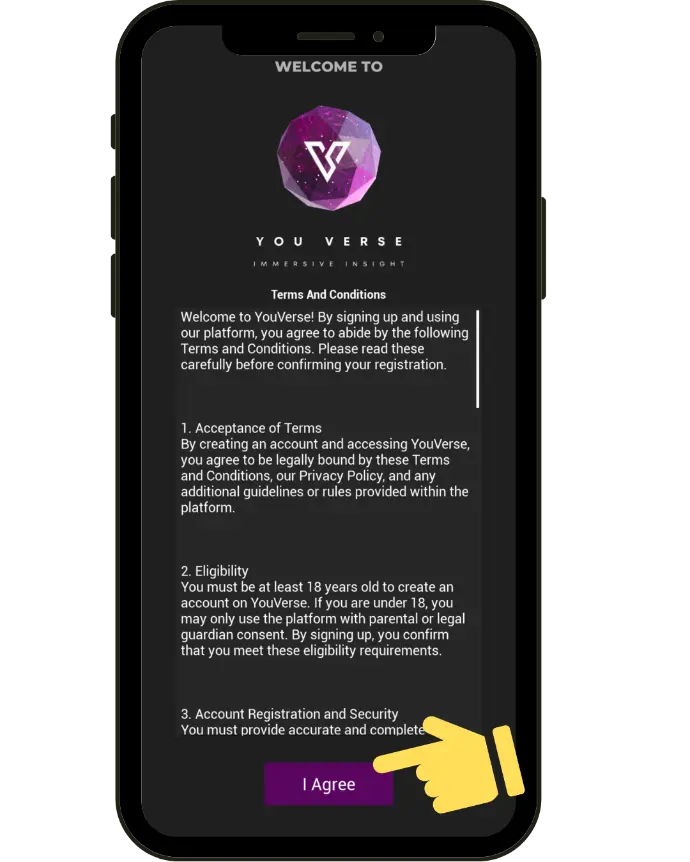
Step 4
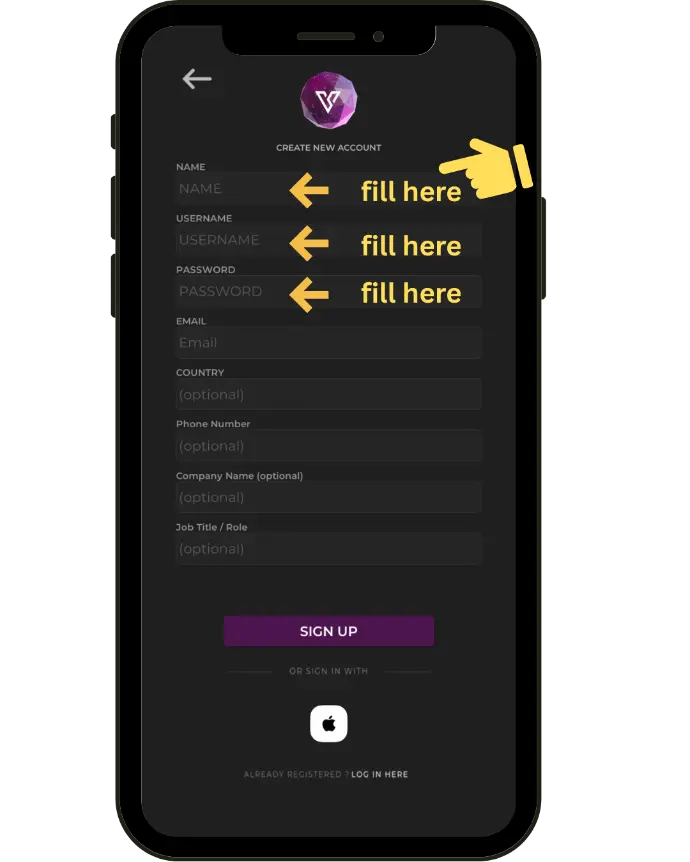
Enter your name, username, password, and email, then tap “Sign Up” (you can skip the optional fields).
Step 5
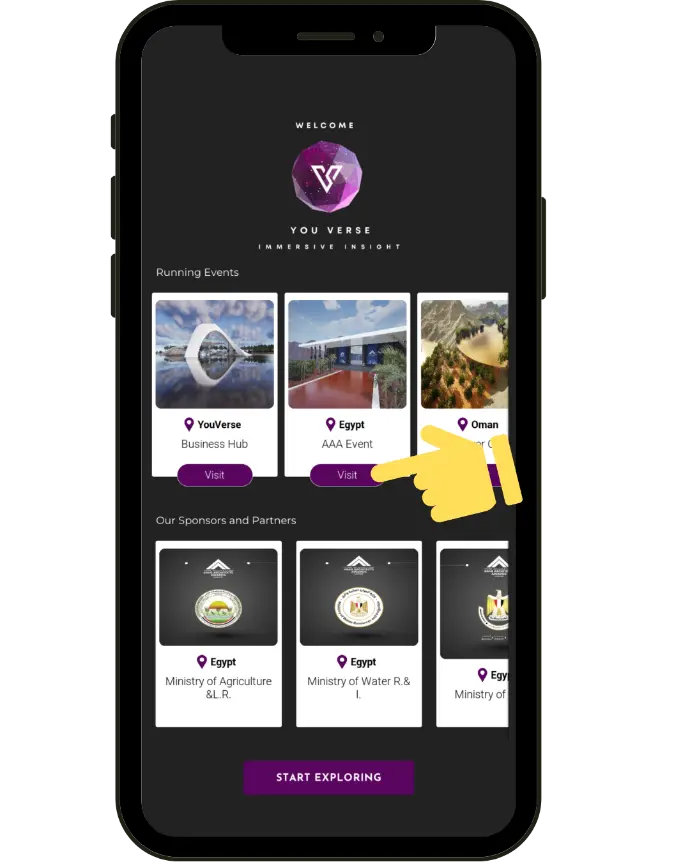
On the home page, go to Running Events and tap “Visit” on the event you want to join
Step 6
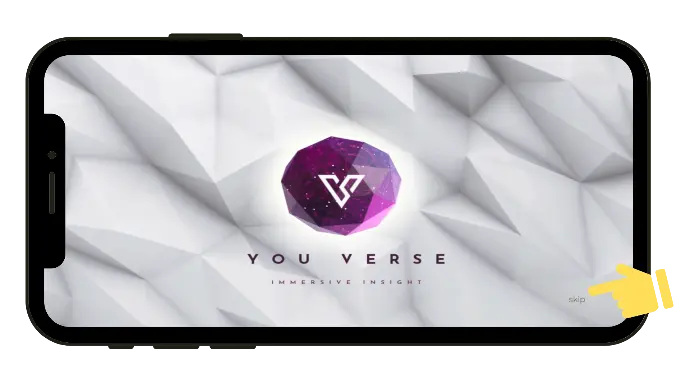
If this is your first time, an intro video will playenjoy it, then tap Skip to go to the landing island.
Step 7
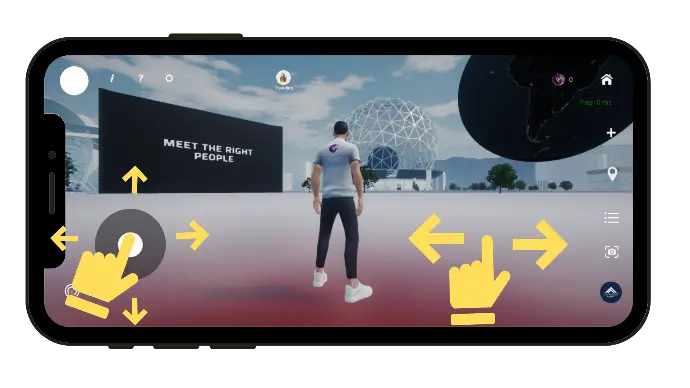
Use the left joystick to move your avatar forward, backward, or in any direction.
Swipe on the right side of the screen to turn your avatar and look left or right.
Step 8
Once you arrive on the landing island, use the portals around you to travel to other maps and enjoy different events.
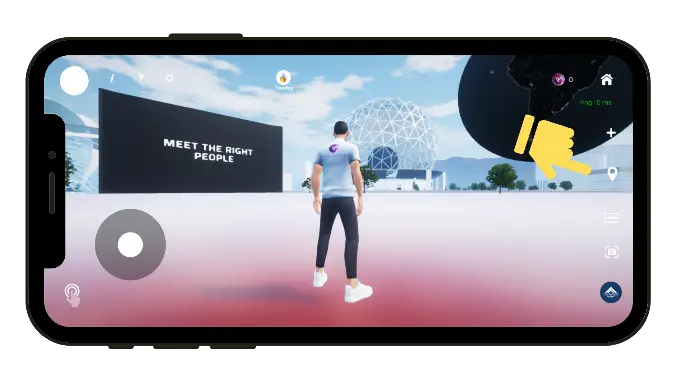
Step 9
Use the teleport bar to scroll and choose the map you are interested in.
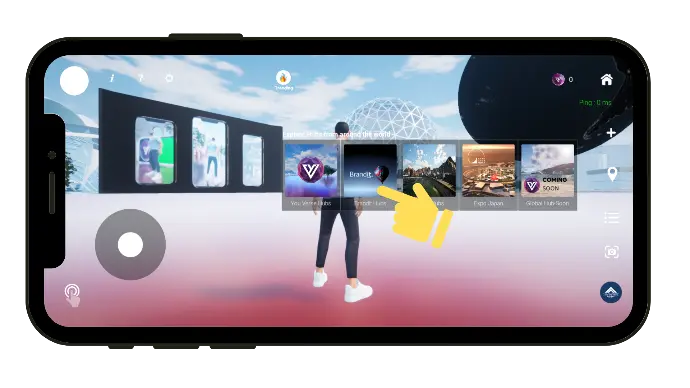
Step 10
After you select a map, the venues inside it will appear for you to enter.
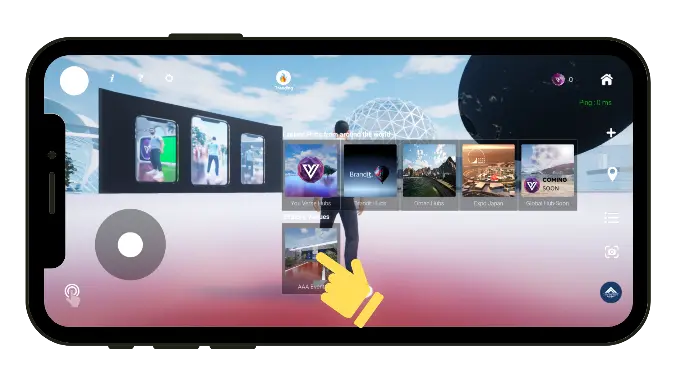
Step 11
After you use the teleport bar, YouVerse takes you straight to the hall, where you can meet other visitors, watch live events, and explore booths.
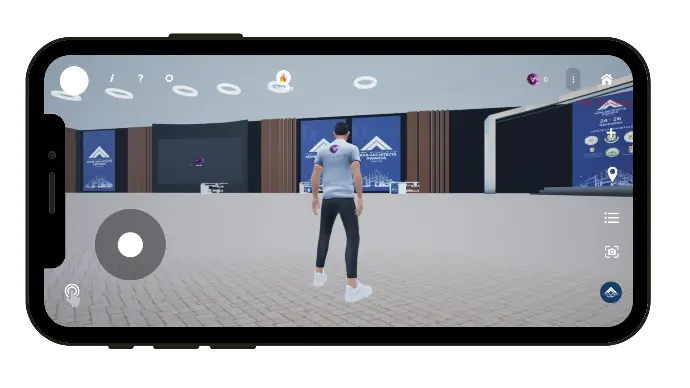
How to do in the map ?!
Step 1
Enjoy watching the live sessions and talks on the main stage screen.
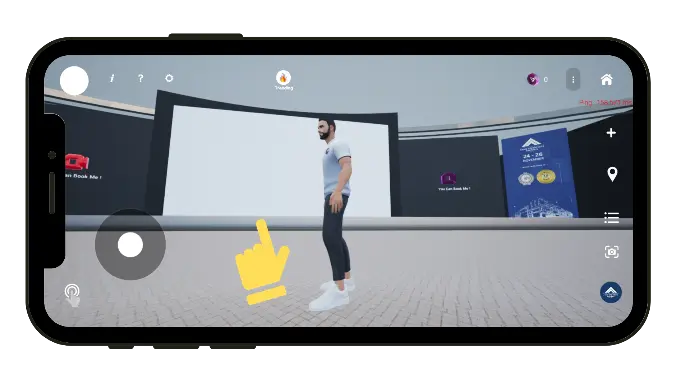
Step 2
Walk to the booths to meet exhibitors, explore their content, and start networking. Tap the List icon on the right side of the screen to see a full list of booths.
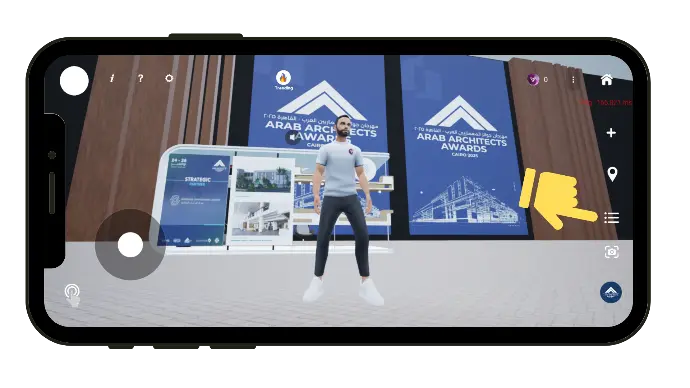
Step 3
In the menu, tap Active Booths and choose the booth you are interested in
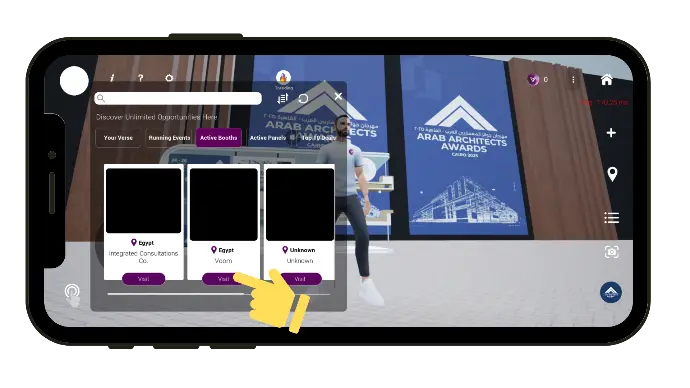
Step 4
Tap Visit and YouVerse will instantly teleport you to that booth
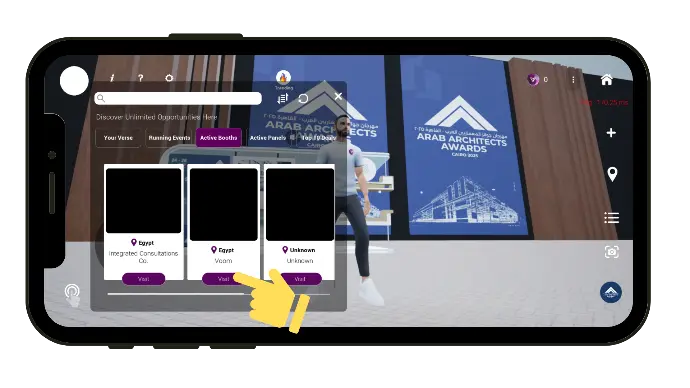
Step 5
Use the booth interaction bar at the bottom to explore everything about this booth.
You can view the company profile, book an appointment, and watch their live streams.
Check your synergy score powered by AI, and use the AI tools to learn more about the exhibitors and their visitors.
The AI advisor is always there to guide you to the best next action.

Step 6
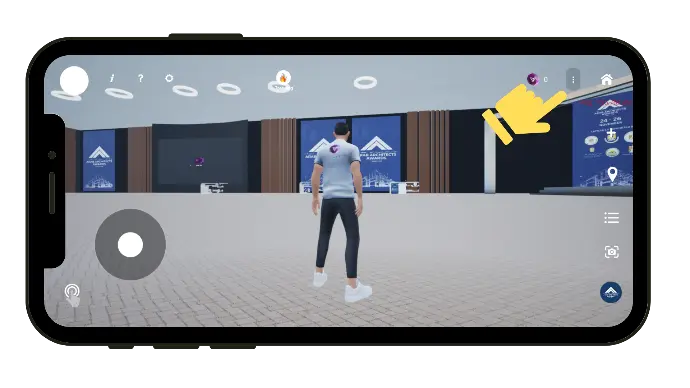
Tap the three dots on the top-right to open the interaction bar.
Step 7
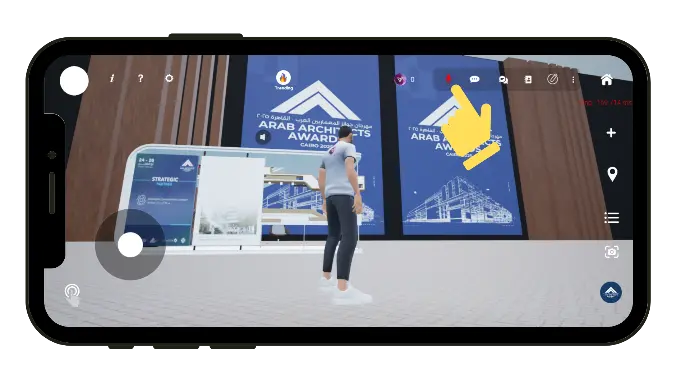
You can chat with others by text and by voice, Tap the red mic to turn it green.
Step 8
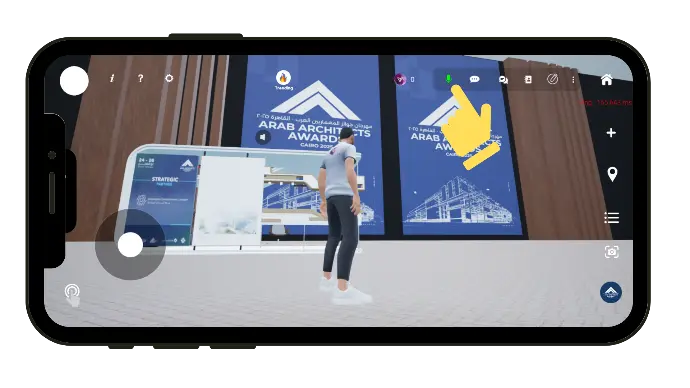
iIf Mic is green, then you can talk with spatial voice chat (people near you can hear you, far away cannot)
Step 9
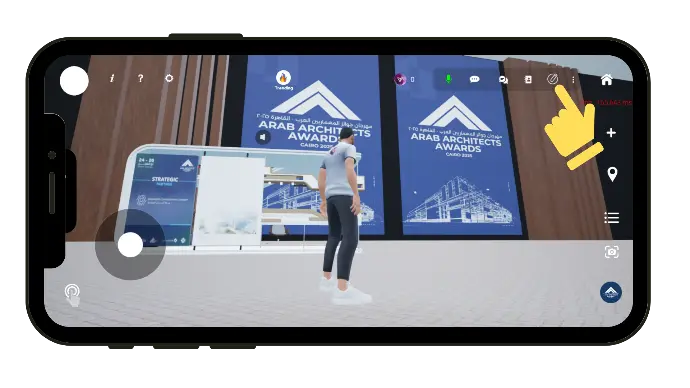
Tap the Edit Avatar button to change how your avatar looks
Step 10
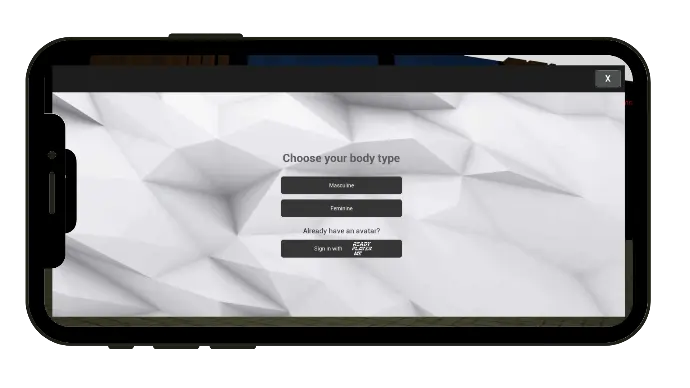
Choose your body type.
Step 11
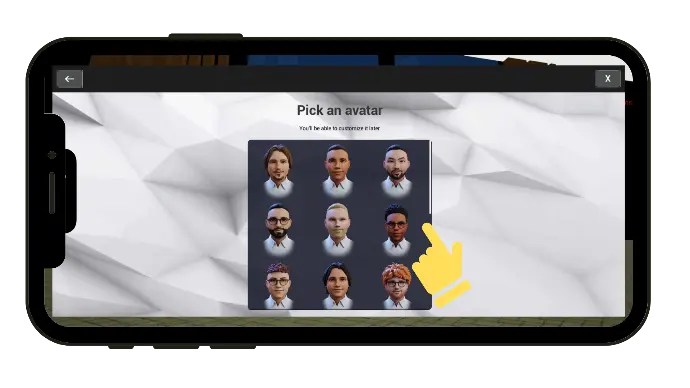
Pick a ready avatar or create one from your photo.
Step 12
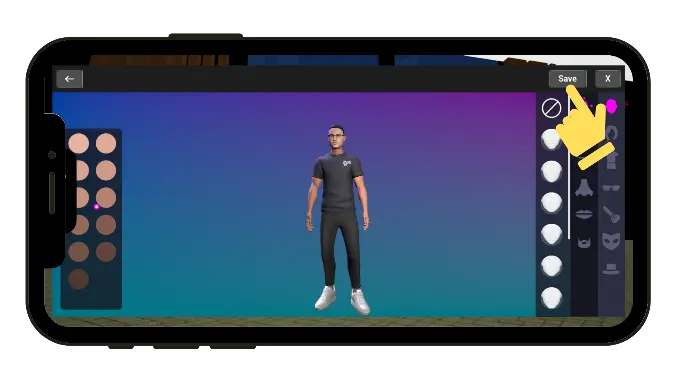
Customize clothes, hair, skin, and accessories and press Save.
Step 13
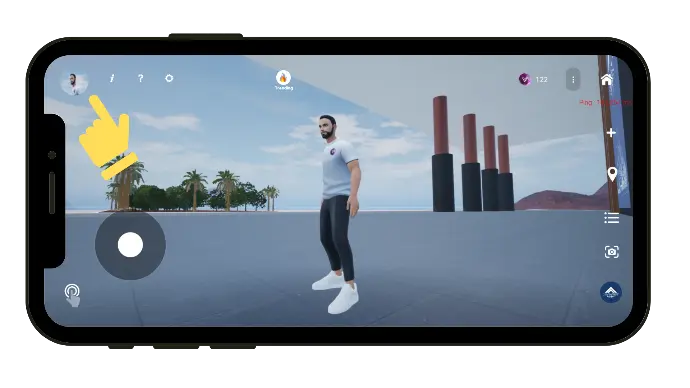
You have your own profile, and when people click on your avatar they can see who you are and what you share.
Step 14
Tap the gear icon to edit your profile, so others can view your info, see your posts, and react with Likes or Trusts.